
Shopify App Creation Steps
Shopify App Creation Steps
Steps to Create Custom App and Retrieve Client credentials
This section explains how to create a Shopify Admin app using the Shopify Dev Dashboard.
Prerequisites
- Shopify store admin access
- Access to Shopify Dev Dashboard
- App is created as an Admin App
Step 1: Open Shopify Dev Dashboard
- Navigate to the Shopify Dev Dashboard and select your organization.
- From the left menu, click Apps.
You will need Shop owner permissions or Full Admin access to access this page. Please reach out to Shopify support in case you face issues.

Step 2: Click Create app
On the Apps page, click the Create app button on the top-right.
You will see two options:
- Start with Shopify CLI
- Start from Dev Dashboard
Select
Start from Dev Dashboard.- Enter App name as Saras Pulse
- Click on Create

Step 3: Configure App Details
After app creation, you will land on the Versions configuration page.
3.1 App URLs
Fill the following:
- App URL: Your store URL
- Embed app in Shopify admin: False

3.2 Configure Access Scopes
Add the required Admin API scopes based on data requirements.
- Copy the scopes below and paste in the editor window
read_orders,read_merchant_managed_fulfillment_orders,read_assigned_fulfillment_orders,read_draft_orders,read_customers,read_products,read_shopify_payments_payouts,read_locations,read_inventory,read_gift_cards,read_shipping,read_price_rules,read_all_orders,read_shopify_payments_disputes

Step 4: Release the App Version
Once configuration is complete, click Release.
A modal appears:
- Version name: Optional
- Version message: Optional
Click Release to activate the version.

Note: You can always create and release a new version of the app and edit/add new settings.
Step 5: Install the App on Store
Click Install app from the App Home screen.

- Select the shopify store you want to install in.
- Approve requested scopes on the Shopify store.
- Once installed, the app can access Admin APIs as per granted scopes.
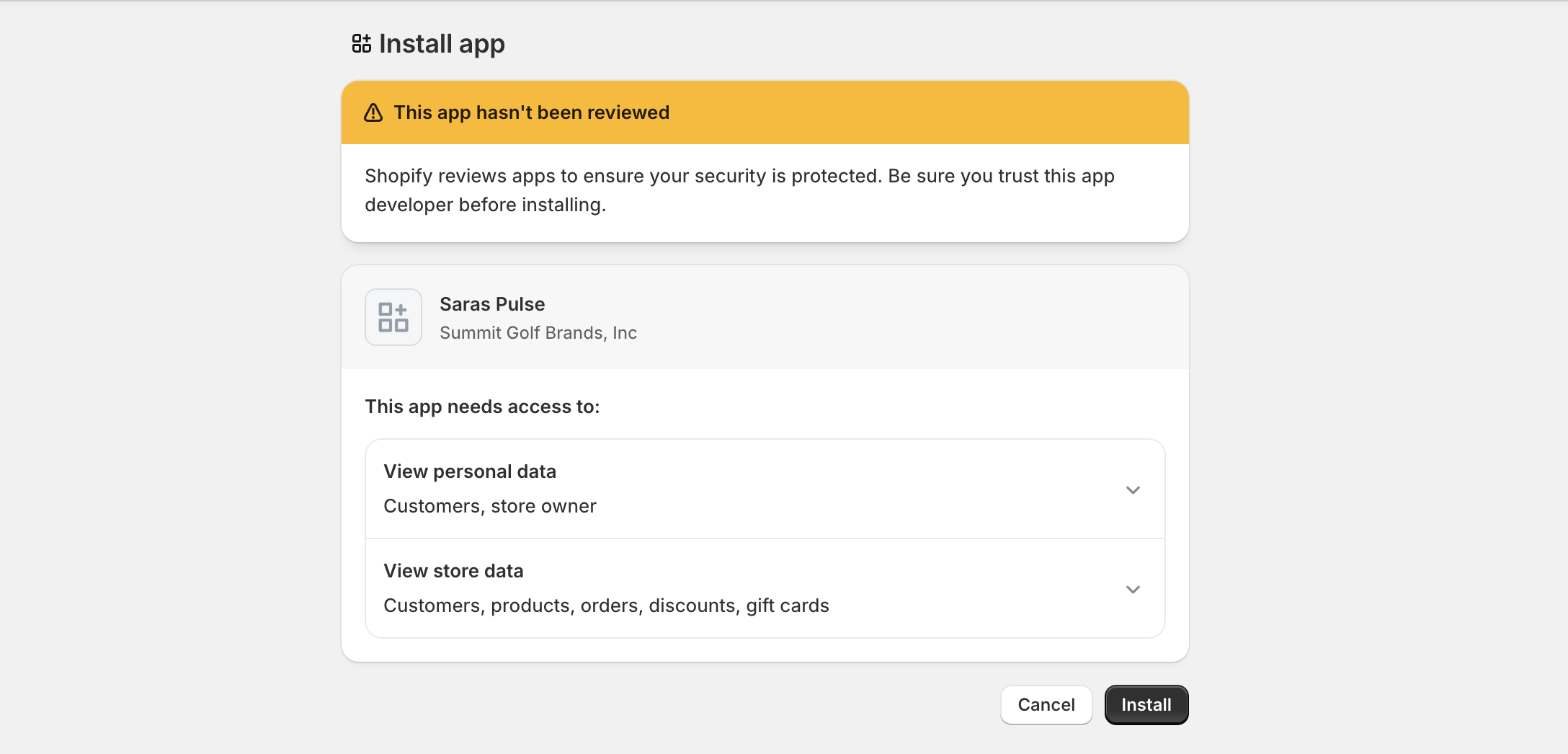
You can use the same app to install in multiple stores. To install in additional store just click Install and select the next store. The client credentials will remain the same.
Step 6: Retrieve API Credentials
Navigate to:
Settings → Credentials
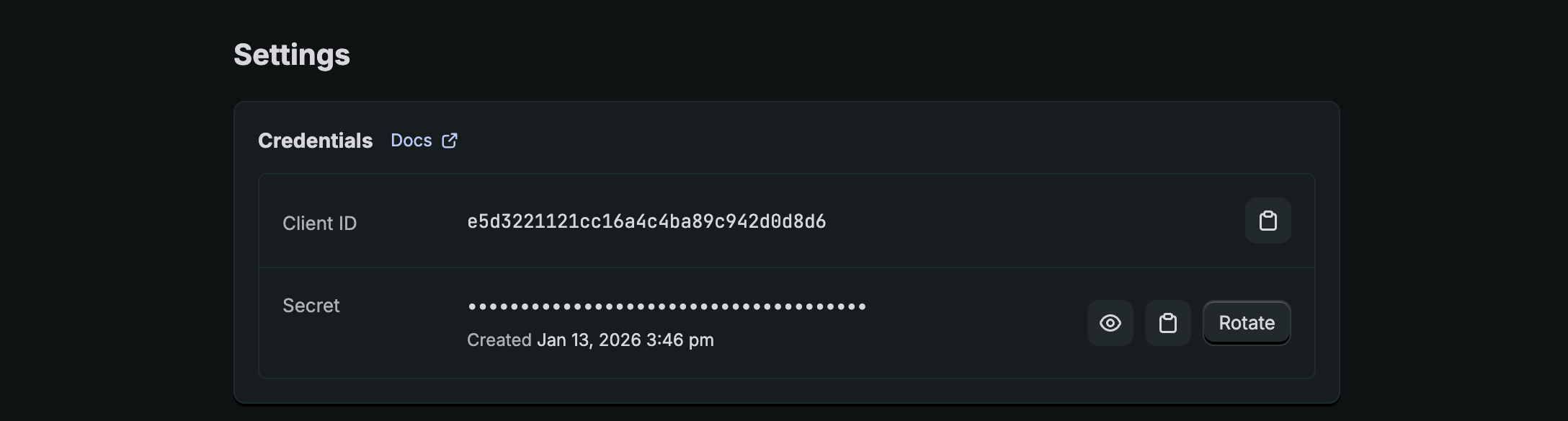
You will see:
- Client ID
- Client Secret
Please copy them and share with our support team - support@sarasanalytics.com
We are currently working on registering Saras as a service provider to make the setup process simpler and more secure. We appreciate your patience during this period.
Table - Scope Mapping
| TableName | Scope Required |
|---|---|
| orders | read_orders |
| transactions | read_orders, read_shopify_payments_payouts |
| refunds | read_orders |
| fulfillment_orders | read_merchant_managed_fulfillment_orders/read_assigned_fulfillment_orders |
| fulfillment_events | read_orders |
| tender_transactions | read_orders |
| draft_orders | read_draft_orders |
| customers | read_customers |
| customer_address | read_customers |
| events | - |
| products | read_products |
| payouts | read_shopify_payments_payouts |
| balance_transactions | read_shopify_payments_payouts |
| collects | read_products |
| custom_collections | read_products |
| smart_collections | read_products |
| abandoned_checkouts | read_orders |
| policies | - |
| countries | - |
| shop | - |
| locations | read_locations |
| inventory_levels | read_inventory |
| inventory_items | read_inventory |
| gift_cards | read_gift_cards (Reach out to Shopify Merchant Success Manager) |
| users | read_users (Reach out to Shopify Merchant Success Manager) |
| carrier_services | read_shipping |
| price_rules | read_price_rules |
| disputes | read_shopify_payments_payouts |
| order_customerjourneysummary | read_orders, read_marketplace_orders, read_all_orders(if you need data for orders placed before 2 months) |